Visual Novel Tutorial - Episode 1: Getting Started
Welcome to the MakkoAI Interactive Visual Novel Series
The goal of this series is to show you how to build an interactive visual novel using MakkoAI. By the end of this series, you will know how to create a full game with multiple scenes & branches, custom backgrounds, custom animations, and how to debug common issues along the way.
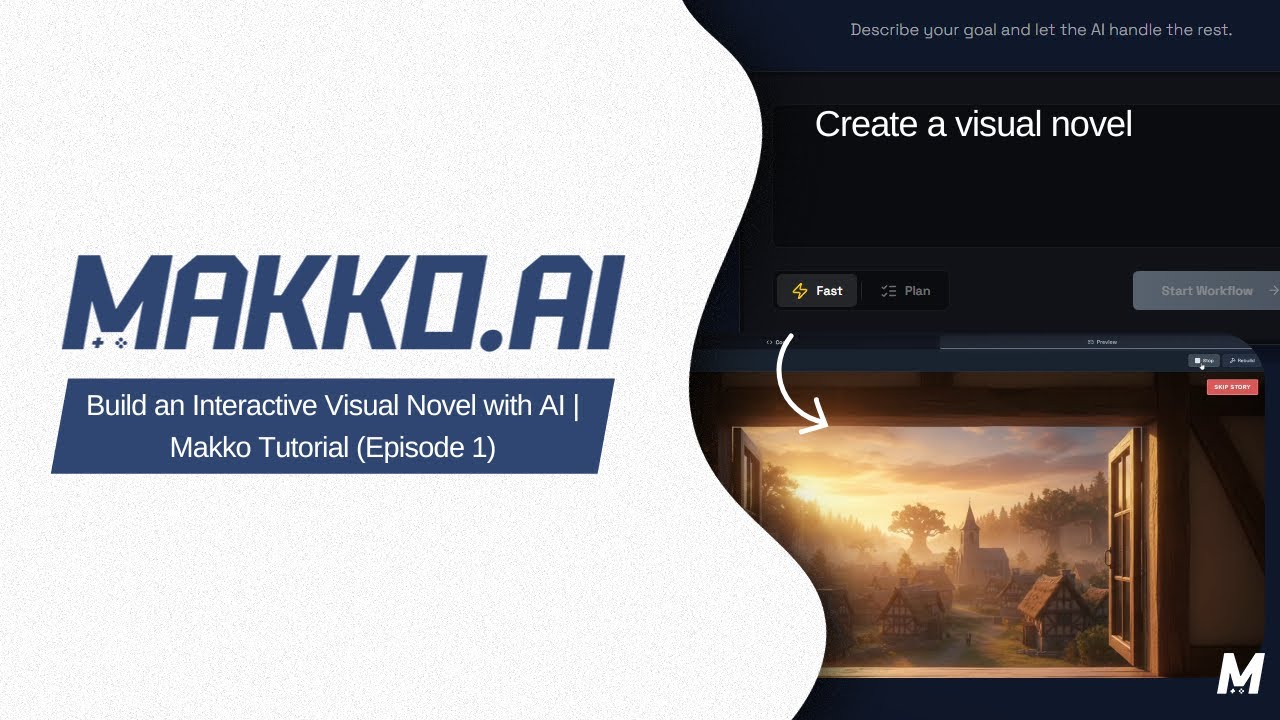
Let's get started.
Step 1: Create Your Project
First thing you want to do is Open Studio and create a new project. Our story is called "The Whispers of Destiny". For the description, feel free to be as brief or as descriptive as you would like. If you have your GitHub account connected, feel free to create a repository for this project. Once you're ready, press "Create Project".
Step 2: Choose Your AI Chat Mode
Once you do that, you will be greeted with AI Chat. Here you will be able to choose between fast mode and plan mode. Because we're just starting our game out, we want to use Plan Mode to layout and plan how we are going to build our game.
Your first prompt should tell Makko what you're trying to build as well as what you need help with.
Our prompt will be:
"I want to create an interactive novel game. Help me think through everything I need to consider while building this game."
Then, press start planning and wait for Makko.
Note: AI is non-deterministic, meaning you won't necessarily get the same output even if you do the exact same input. So your result for this prompt might be a little different from mine, but it should generally be similar.
Step 3: Answer Makko's Questions
As you can see, Makko is going to help us design our interactive novel from scratch. It just needs some questions answered in order to understand our vision. Like I just mentioned, your questions here may be different than mine, but regardless, you want to take a few minutes here and answer all the questions that Makko presents you with so it can generate the best plan for your game.
For me, Makko asked questions about:
- Visuals & Presentation
- Story & Mechanics
- Content Management
- Technical Preferences
Tip: In order to make this series as efficient as possible, I went ahead and pre-created a story before I started recording. This is something you probably haven't done yet, so you will want to work on that story with Makko directly or on your own, and then let Makko know that you have a story ready.
Keep Your Answers Concise
Your answers should be direct and concise. You don't want to be writing paragraphs for each point as this is just setting the foundation for the game, not building the entire thing at once.
From my answers, you can tell that we are building a Fantasy Adventure Story with:
- Multiple choices at the end of each scene
- Background images for each scene
- Character sprites accompanying the narrative text
- Text presented in typewriter format
- A "Skip Story" button for faster troubleshooting
These answers will be unique to your vision, or if you'd like, you can take inspiration from my answers and try to follow along!
Step 4: Review and Approve the Plan
Once you have all your answers, enter the prompt and Makko will give you an overview explaining everything you just provided it. Read through this overview and ensure that everything looks good, and if something doesn't, just let Makko know and it will adjust.
If there are no issues, let Makko know this overview looks good, and it will generate an implementation plan for you to approve.
Troubleshooting: If the submit plan fails, just tell Makko to "Continue" and it will re-attempt the work.
After Makko is done creating the plan, you will see the Proposed Plan and Approach for you to approve. Take a minute to review this plan and ensure that it matches the vision that you have for this game:
- If you see any issue, reject the plan, adjust, and resubmit
- If everything looks according to your vision, press Approve and Makko will begin implementing the plan
Step 5: Watch the Implementation
As Makko implements the plan, you will see each Task being completed one at a time, with a progress bar at the top showing you how close it is to completion. Since your plan may vary slightly from mine, it is completely normal to see more or less tasks at the top. As long as the plan you approved looked right, everything should be good.
Step 6: Preview Your Game
Once all your tasks are completed, you are now able to Preview the first version of your game!
- Click on Preview at the top right
- Press "Rebuild" to recompile your code
- Press Play
What You Should See
Even at this early stage, you should see:
- A main canvas trying to load your background image
- An area near the bottom of the screen for narrative text
- A "Skip Story" button at the top right (if you included this feature)
Common Issue: XHR Runtime Error
Unfortunately, you might run into a runtime error. A common one is:
Uncaught SyntaxError: Failed to execute 'open' on 'XMLHttpRequest': invalid URL
This is a known issue that Makko may not be able to fix automatically. See our XHR to Fetch Migration Bug article for the simple fix.
Quick Fix
- Copy the error
- Paste it into the AI Chat
- Add: "instead of using xhr use fetch to fix this issue"
- Submit and verify the fix by checking the file and line mentioned in the error
After fixing, go back to preview, rebuild your game, and press play. You should see it working as intended!
What's Next
Even without providing a custom story to Makko, it generated a basic story so that we can see how the game works. In Episode 2, we will go ahead and start replacing this story and backgrounds with our custom content.
If you've been following along, you should now have a working first version of the game, ready to start implementing your own custom story and feel!
Ready for the next step? Check out Episode 2 to start customizing your visual novel with your own story and artwork! Watch the Episode 2 video on YouTube.